Setup guide · Updated October 29, 2026
Get your first Intercom conversation into HubSpot.
DeskWitness shows support conversations in a card on the matching HubSpot record. This guide takes you from connecting the two accounts to checking a real conversation, with a preview before you enable sync.
Before you start
- A US-hosted Intercom workspace. EU- and Australia-hosted workspaces are not supported yet. Check the workspace's hosting region with your Intercom administrator if you are unsure.
- Permission to authorize apps in Intercom and install apps in the HubSpot account you want to use. Ask your account administrator if either platform blocks authorization.
- A contact with an email address in Intercom and an ordinary support conversation you can use to check the result.
One Intercom workspace connects to one HubSpot account. Keep both authorization steps in the same browser. The free plan includes 100 tickets per month; no payment is needed to start. See current plans.
Internal notes are included. They are labeled “Internal note” in HubSpot. Connect an account whose users should be able to read this support history.
1. Connect Intercom and HubSpot
- Start the DeskWitness installation, or find DeskWitness in the Intercom App Store.
- Choose the intended Intercom workspace and review its permissions. DeskWitness reads Intercom data; it does not write changes back to Intercom.
- Continue to HubSpot, choose the intended account, and review the requested permissions. DeskWitness can create or update HubSpot records and create associations as part of the sync you configure.
- When installation finishes, check the DeskWitness dashboard. Both provider connections should show HEALTHY. If Intercom is not connected, use Connect Intercom / Reconnect to authorize the same workspace again.
If you already installed through HubSpot, open the dashboard and connect Intercom there. Connecting accounts alone does not enable a new sync configuration.
2. Configure the sync and review a dry run
The dashboard shows field mappings and Noise rules and mandatory dry-run. Field mappings control additional Intercom contact and company properties written to HubSpot; choose only the fields you need, and use Save as new version when changing them.
- Review the noise rules. For example, you can skip spam and conversations closed without an agent reply. Use Save noise rules if you change them.
- Select Run mandatory dry-run. This is a read-only preview, not a HubSpot sync.
- Check the proposed record targets, field differences, associations, suppressed items, API budget, and uncertainty. Fix blocking uncertainty or budget issues before continuing.
- When the preview is eligible and the proposed changes are right, select Accept preview and enable sync.
A changed configuration needs a new accepted preview. Do not enable a preview you do not understand; ask us for help.
Add the DeskWitness card to your HubSpot records
HubSpot only shows an app card on records after it is placed in a record layout. Do this once for contacts. You need a HubSpot user who can customize record views, usually a Super Admin. The card is named DeskWitness — Support conversations.
- In HubSpot, select the Settings (gear) icon in the top navigation bar.
- In the left sidebar, open Objects, then Contacts.
- Open the Record customization tab.
- Under Default view, select Edit (or Customize) to open the layout editor. To change it for one team only, create a new view instead and choose its teams.
- Choose the tab where you want the card, usually Overview, and select Add cards (or Add card) in the middle column.
- In the Card library, search for DeskWitness. Select DeskWitness — Support conversations and add it. If you do not see it, switch the library filter to apps or connected apps.
- Drag the card to where you want it, then select Save. Confirm any prompt about who will see the new layout.
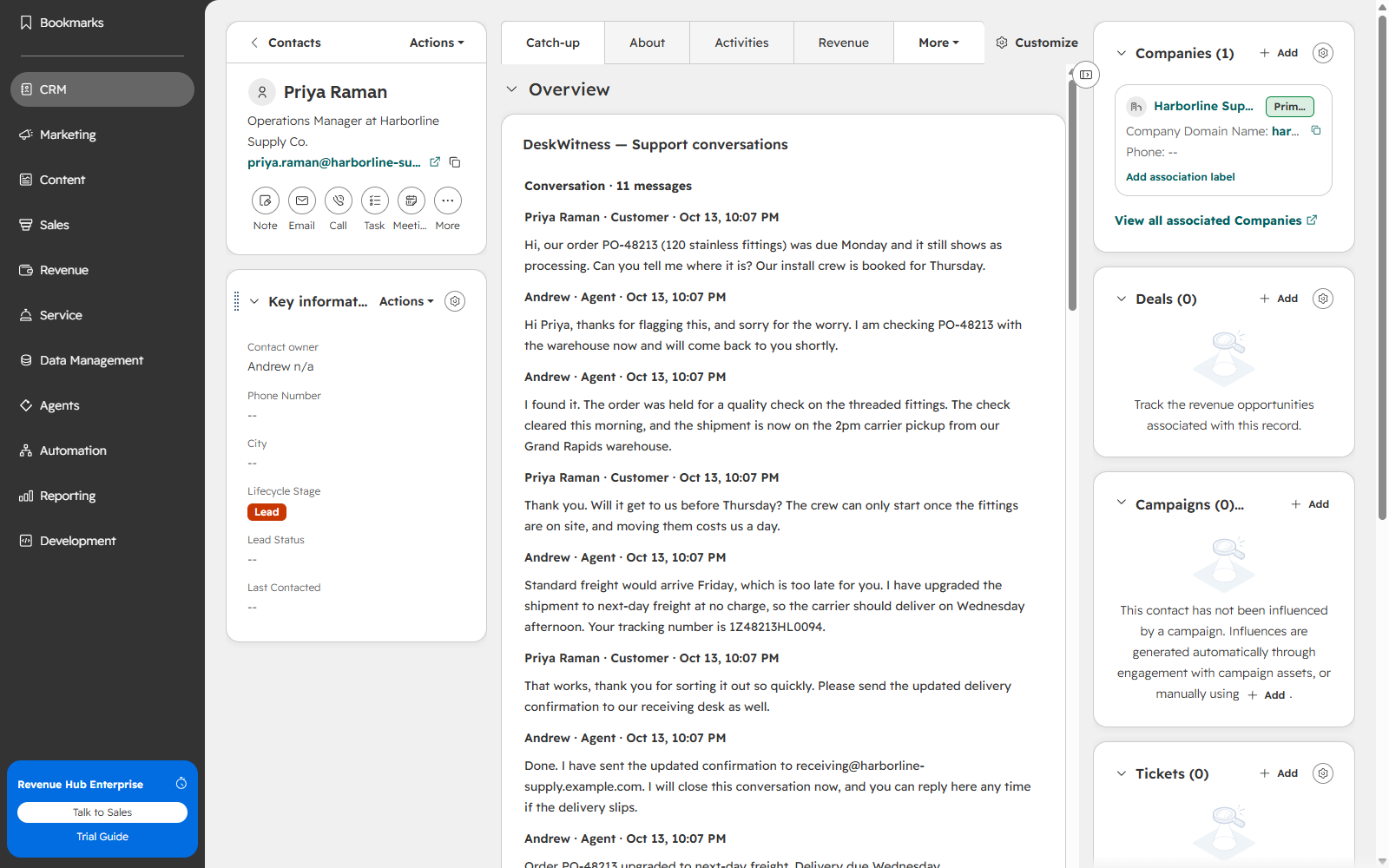
- Open a contact whose email matches an Intercom contact with a synced conversation. The card appears in the position you chose and lists the conversation.
Shortcut: on any contact record, open Actions, choose Customize record, and continue from step 5. HubSpot occasionally renames these menu items; the card library and the card name stay the same. Repeat the steps under Companies if you also want the card on company records. The card shows nothing until a conversation has synced for that record.
The card is not in the library? Confirm DeskWitness appears under Settings, Integrations, Connected apps and that your user can edit record views, then reload HubSpot. If it is still missing, email support@venturevd.com with your HubSpot account ID (the number in your HubSpot URL) and we will sort it out with you. Your synced data is safe in the meantime and the dashboard still shows every sync.
3. Check your first conversation
- Use a conversation that has the contact's email address and is allowed by your noise rules. Add a normal reply in Intercom if you need a new event for your test.
- In the DeskWitness dashboard, check Sync log. Look for SUCCEEDED and review the linked HubSpot records. A suppressed item is not a failed sync: its reason explains which rule skipped it.
- Open the matching HubSpot contact and find DeskWitness — Support conversations. If the card is not on your record layout yet, add it to the layout (steps below).
- Confirm that the conversation, authors, replies, and labeled internal notes are the history you expect.
Conversation reconciliation runs periodically, so discovery may not be immediate. Ticket updates are webhook-driven; do not assume a historical ticket backfill. If nothing arrives after several minutes, use the checks below.
Watch the 40-second walkthrough
This captioned screenshot walkthrough shows a synthetic conversation on a HubSpot record and how internal notes are distinguished from replies. It has no audio and does not show a continuous live installation.
Read the walkthrough transcript
Connect your US Intercom workspace and HubSpot account. Review the dry run before enabling sync. In HubSpot, open the matching contact and read the support history in the DeskWitness card. Customer and agent replies appear in order. Private support comments are clearly labeled Internal note. Start with the free plan and use this setup guide to connect your own accounts.
If something is not working
Intercom workspace is unavailable or the region is unsupported
Confirm that the workspace is hosted in the US and is not already connected to another HubSpot account. Reconnect uses the same workspace. If it was linked to the wrong account, contact support rather than repeatedly authorizing different accounts.
Authorization expired or the dashboard asks you to reconnect
Restart from the installation link or open the dashboard through HubSpot to sign in again. Then use Connect Intercom / Reconnect if Intercom needs authorization. Keep the flow in the same browser.
The dry run cannot be accepted
Read the Uncertainty and API budget sections. Correct the named issue and run a fresh preview. Saving mappings or noise rules changes the configuration and requires another accepted dry run.
Nothing appears on the HubSpot record
Confirm that sync is enabled, both connections are healthy, and the Intercom contact has an email address. Check the sync log for the record DeskWitness matched or created and for suppression reasons. Make sure you are viewing that record and a layout containing the DeskWitness card.
A thread is incomplete or a job failed
Use the sync log's outcome and reason code to identify the issue. An incomplete label means the app could not verify the complete thread; it is not a complete-history guarantee. Send support the reason code and when it happened. Do not email passwords, access tokens, or unnecessary conversation content.
Need help with your first setup? Email support@venturevd.com with the step you reached and the error shown.
Disconnecting and data
You can uninstall DeskWitness through the platforms' app-management settings. See the privacy notice for retention and deletion details, and contact support for account-removal help. Message text is encrypted and retained for up to 90 days. Internal notes are part of the synced conversation history.
Connect your accounts